
Google Reviews widget for a website: how to connect Google My Business API
Google Reviews are a great way to show your reputation and customer trust on your website. With this widget, you can integrate your business's Google My Business reviews directly onto your website. In this article, I will tell you how to connect the Google My Business API to use the Google Reviews widget.
Step 1: Access Google My Business
Before you begin the API connection process, make sure you have access to Google My Business. If you don't have direct access, you can ask your company or primary account administrator to give it to you.
Step 2: Create a project in the Google Cloud Platform
To use the API functionality and obtain the necessary authorization keys, you need to create a project in the Google Cloud Platform:
-
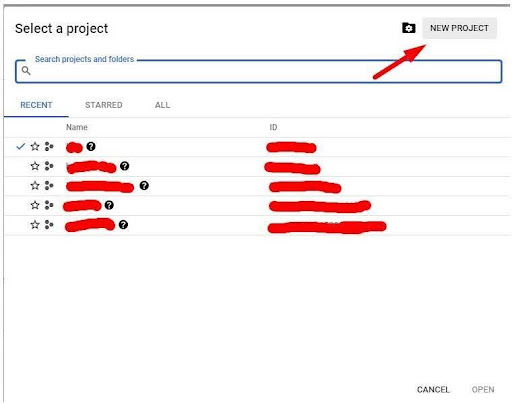
Go to https://console.cloud.google.com/project and create a new project.

-
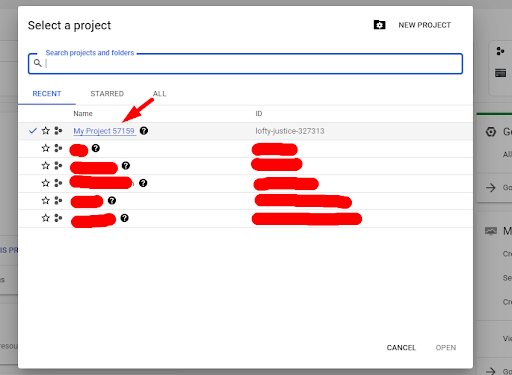
Enter a project name and click "Create".

-
Copy the Project ID and Project Number and save them for later use.
Step 3: Request API access
Now that we have a project in the Google Cloud Platform, we need to request access to the Google My Business API:
-
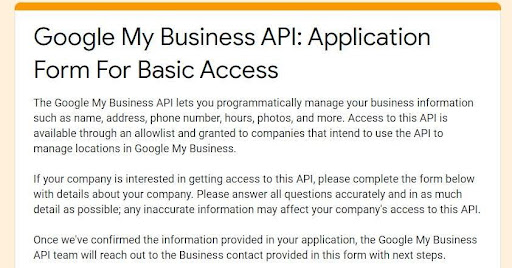
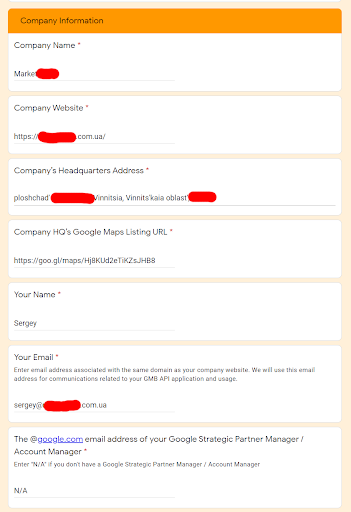
Follow the link https://docs.google.com/forms/d/1XTQc-QEjsE7YrgstyJxbFDnwmhUhBFFvpNJBw3VzuuE/viewform to fill out the request form.
-
In the form, indicate your Project ID, Project Number, and your corporate email.

-
Confirm submitting the form from the specified email.


-
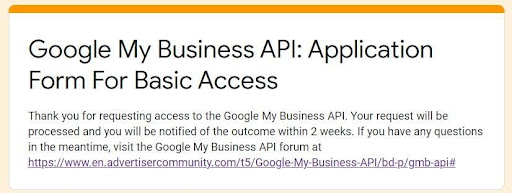
Please wait for a response from the Google team - it may take a few days.
Step 4: Enable Google My Business API
Once the access request is approved, we can enable the APIs we need for the project:
-
Go to the "APIs & Services" section -> "Library" in the Google Cloud Platform.

-
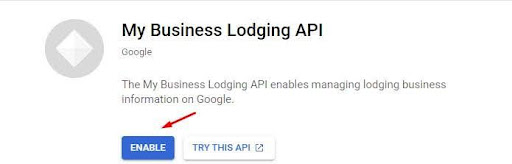
Find the following APIs and enable them:
- Google My Business API
- My Business Account Management API
- My Business Lodging API
- My Business Place Actions APICode here# Create a new client and credentials
Step 5: Configure OAuth authorization for the application
To work with the Google reviews widget, we must create an OAuth client and obtain the necessary authorization keys:
-
Go to the "APIs & Services" section -> "Credentials" in the Google Cloud Platform system.

-
Click on the "Create Credentials" button and select the client OAuth type.

-
Specify the project name, select the application type (for example, web application), and enter all required data.


-
Add a redirect URI for your site or page with the Google reviews widget.

-
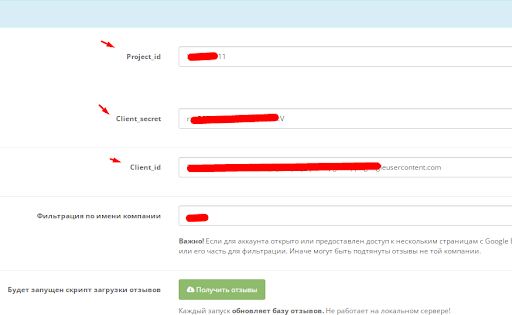
Save the Client ID and Client secret - we will need them later.
Congratulations! You have now connected the Google My Business API to your project and can use its functionality to display reviews on your website.
Step 6: Setting up the Google reviews widget
Finally, we can start setting up the Google reviews widget itself:
- Install the “Google Reviews - reviews from Google Maps (Google Business)” module on your website or CMS.
- Enter the previously obtained Client ID, Client secret, and other necessary data in the module settings.
- Save the changes and check the functionality of the widget.
Now you can display the latest reviews for your business from Google My Business directly on your website using the Google Reviews widget. This helps build trust with customers and present your company in the best possible light.
If you follow all these steps, you will be able to successfully connect the Google My Business API and use the Google reviews widget on your website. Good luck!





It's free and takes 2 minutes. There are 1500+ digital agencies in the catalog that are ready to help in the implementation of your tasks. Choose and save up to 30% on time and budget!