
How to change your Instagram password or reset it if you forgot it
If your Instagram account has been hacked, it may be time to change your password.
You need to be very careful when it comes to the security of websites, various online services, and especially social networks. Logging into Instagram with a weak password, a password that is duplicated on other sites, or a password that has previously been hacked on other sites puts users at great risk. If something like this has happened, it's time to come up with a new password.
Fortunately, changing your Instagram password is easy, whether it's on a computer or a smartphone. It is only important to remember that if you log in via Facebook, you will have to change your password in the settings of this social network.
How to change your password in the mobile application
The steps for changing your password in the mobile application are the same for Android and iOS:
- Launch Instagram.
- Click on the account icon in the lower right corner to go to your profile page. Tip: if you have multiple accounts, press and hold the account icon at the bottom of the screen and select the desired one in the pop-up window.
- Click on the icon with three horizontal lines in the upper right corner of the screen and select "Settings".
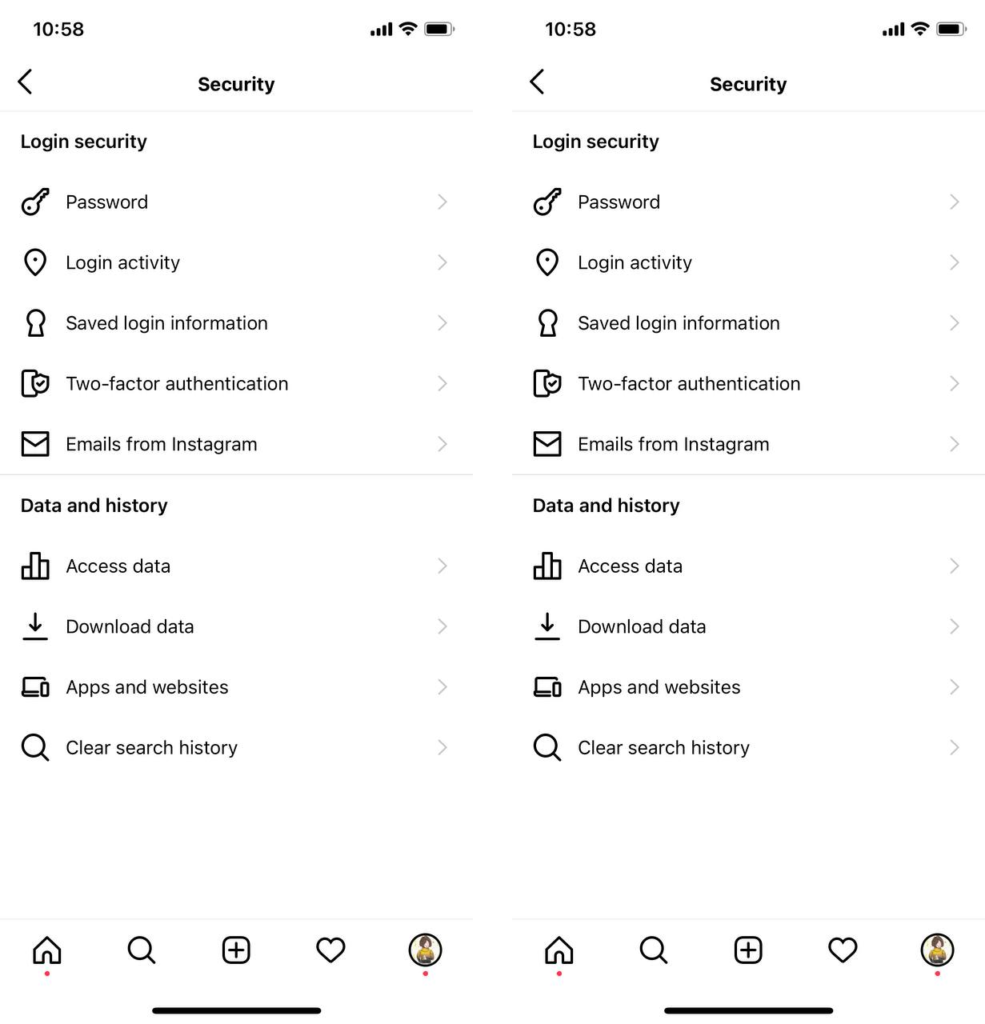
- Click on "Security".
- On the security settings page, click on "Password".
- Enter your current password, and then the one you want to set. Then click "Save" if you have iOS, or check the box if you use Android.
How to change your password on the desktop version
- Open the Instagram website in your browser.
- Click on the account icon in the upper right corner of the window and in the drop-down menu, click "Profile".
- Click on the gear icon to the right of the "Edit Profile" button.
- In the pop-up window, click "Change Password".
- Enter your current password, and then the one you want to use. Then click "Change Password".
How to recover your password if you have forgotten it
If you've lost or forgotten your Instagram login password, you'll need to reset it. You can do this from the login screen on the mobile app or in your browser if you're using the desktop version.
On the mobile app:
- On your mobile device, open Instagram to the login screen. Under the username and password fields, tap "Get help" when signing in (if you're using an Android phone) or "Forgot your password?" (on iOS).
- If you're using an Android phone, enter your email address, phone number, or username and tap "Next." If you're using an iPhone, select which tab you want to use - "Username" or "Phone" - and enter the appropriate account associated with your account, then click "Next".
- You will receive a message with instructions on how to recover your password.
On the desktop version:
- Go to the Instagram website in a browser and on the login screen, then under the "Username" and "Password" fields, click "Forgot your password?".
- Enter your email address, phone number or username and click "Send login link".
- You will receive a message with instructions on how to recover your password.
Dreaming of getting a blue check mark on Instagram? A check mark on Instagram will significantly highlight your profile and add more credibility to your account. In order to verify your account on Instagram, you need to be a media personality, in other words, you must be written about in the news and publications. We help with articles in federal and world media, to go through the verification procedure on Instagram and get a blue check mark.




It's free and takes 2 minutes. There are 1500+ digital agencies in the catalog that are ready to help in the implementation of your tasks. Choose and save up to 30% on time and budget!