
How to Delete an Instagram Account: A Complete Guide

Instagram is one of the most popular social networks in the world, but many users encounter problems: excessive advertising, undesirable functionality changes, and questionable moderation policies. All of this leads to the decision to delete their account. However, Meta deliberately complicates this process to keep users online.
This guide will show you how to delete an Instagram profile from your computer or phone quickly and easily.
Reasons for deleting an Instagram account
Users delete Instagram for several legitimate reasons:
- Psychological pressure
- Privacy
- Loss of time
- Loss of productivity
- Failure to accept platform policies
If the social network is not bringing you joy or is causing harm, you should consider deleting or temporarily deactivating your profile.
Deleting an Instagram account from a computer
Step 1
Log in to your account. Open your browser, go to instagram.com, and log in.
Step 2
Open Settings. On the left side of the screen, click "More" → "Settings."
Step 3
Go to the Account Center. In the center of the screen, find the "Accounts Center" block at the top.
Step 4
Personal Details. Click "Personal Details."
Step 5
Account Management. Select Account Ownership and Control → Deactivation or Deletion.
Step 6
Select an account. If you have multiple profiles, select the one you want to delete.

Step 7
Deletion Type. Two options are available:
- Temporary deactivation – the profile is hidden but can be restored
- Permanent deletion – all information is permanently erased
Select "Permanent deletion" and click "Continue."
Step 8
Confirmation. The system will ask for your password and may ask further questions. Complete this step, and your account will be deleted.
Deleting an account via the app (Android/iOS)
Step 1
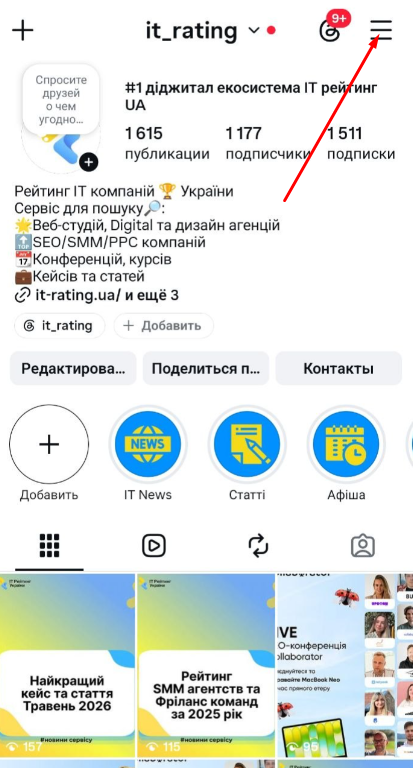
Open your profile. Launch Instagram and tap your avatar in the lower right corner.
Step 2
Main menu. Tap the three horizontal lines in the upper right corner.
Step 3
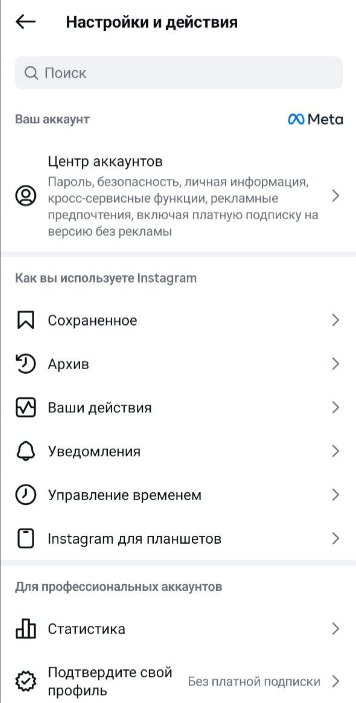
Account Center. Select Accounts Center.
Step 4
Personal Details. Click "Personal Details."
Step 5
Deactivate or Delete. Select "Manage Account" → "Deactivate or Delete."
Step 6
Select an account. If there are multiple accounts, select the appropriate one.
Step 7
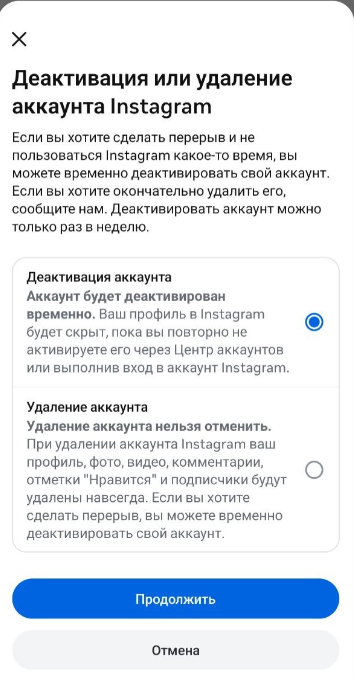
Select "Permanently Delete" or "Temporarily Close" → "Continue."
Step 8
Confirmation. Enter your password and/or specify a reason for deletion.
Important information before deleting
Recovery Period
30 days for initial use (up to 90 days in some regions). Log in to your account before the expiration date – it will be restored.
Username
After deletion, your username may be available for new registrations. You can reuse it unless someone else takes it first.
Permanent Deletion
After the renewal period, all information (photos, videos, messages, interactions) is permanently deleted and cannot be recovered.
Conclusion
The deletion process is similar for both computers and smartphones, but access to these features is hidden deep within the Account Center settings. Important:
- Follow all steps carefully
- Choose full deletion if you don't plan to return
- If you just want to take a break, choose temporary deactivation
Review your digital habits. If you decide to return, you can do so within 30-90 days of your deletion request.




It's free and takes 2 minutes. There are 1500+ digital agencies in the catalog that are ready to help in the implementation of your tasks. Choose and save up to 30% on time and budget!